Configure Device Settings

The section familiarizes you with the phone’s settings. Phones are delivered to customers configured with their default settings. Customers can customize these settings to suit specific personal or enterprise requirements.

To access device settings:
1. In the home screen, tap the user (avatar) picture, then tap the Settings > Device settings.

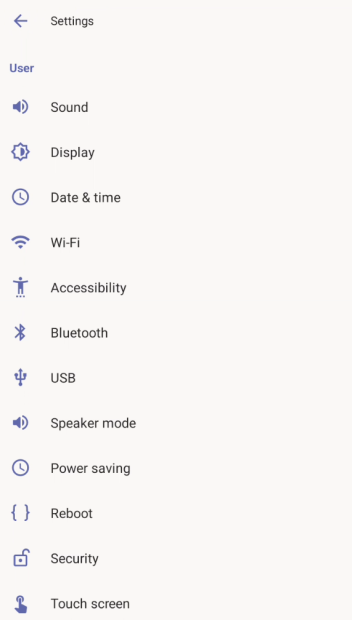
2. View the settings under 'User'. Tap a setting to open it. Use the following table as reference. [To view settings related to the network administrator, scroll down and open 'Device admin settings'].

Device Settings

Setting

Description

User

Sound

Allows you to customize the phone volume for a friendlier user experience:

Media volume
Ring & notification volume

Display

Opens the ‘Display’ screen, where you can adjust:

Brightness level
Screen timeout
Screen saver

Date & time

Automatic date & time: If enabled, date and time are automatically retrieved from the deployed Network Time Protocol (NTP) server.
Time zone
24-hour format
Date format

Also supported is a simplified version of NTP called Simple Network Time Protocol (SNTP). Both can be used to synchronize device clocks. SNTP is typically used if full implementation of NTP is not required.

NTP

Preferred NTP server

Administrators can use this parameter to manually define the NTP server, to comply with enterprise security requirements if those requirements preclude using DHCP Option 42. Manual configuration takes precedence over DHCP Option 42 and the time servers. Two ways to manually define the NTP server are available:

Administrators can define it in the phone’s GUI.

Administrators can alternatively use the parameter 'date_time/ntp/server_address' in the phone’s .cfg configuration file.

See also Sign In to Your Teams Phone.

Wi-Fi

[Only available for phones with integrated Wi-Fi (DBW-suffix)]

The phone can connect to an Access Point via Wi-Fi. See the phone's Quick Guide for detailed information on setting up Wi-Fi. See also Configure Wi-Fi in this document for information about configuring the feature.

Accessibility

Allows making the screen reader-friendlier:

Font size
High contrast text
Color correction
Talkback (see also Enable Google Talkback).

USB

If enabled, allows the phone to be used as an audio device (see Enable a Phone to be used as an Audio Device).

Speaker Mode

Use to enable or disable the speaker. If disabled, the user needs to speak into the handset during calls.

Power Saving

Allows users to contribute to power saving in the enterprise.

Set:

Enable power saving.
Start time – only relevant if power saving is enabled. The device consumes minimal energy before the user arrives at the office.
End time – only relevant if power saving is enabled. The device consumes minimal energy after the user leaves the office.

Reboot

Enables users to reboot the device.

Log in as Administrator for more debugging settings to be available.

Security

Helps secure the enterprise telephony network against breaches.

Screen lock – tap to select the requested lock type (Pattern, PIN, or Password) to secure it against unwanted use, or to remove an existing lock. After setting up a lock, a Settings icon appears to its right.

Tap to change the timeout (default is 10 minutes) after which the phone automatically locks and is inaccessible to anyone who does not know its lock code. If you are using a Pattern lock, you can also make the pattern briefly visible when you draw the pattern.

Show passwords – if turned on, the screen displays characters briefly when you type the PIN or password.

Touch screen

Allows users to disable the phone’s touch screen (for example, to clean it without tapping buttons). To re-enable the screen after cleaning, touch it with your finger.

Languages
& input

Allows users to customize inputting to suit personal requirements.

AudioCodes pairing

Displays the name of the phone and allows you to pair it to a nearby connected PC.

About device

Provides users with device information.

To determine the device’s IP address, select the Status option.
To get information about the Android version, select Android version.
To get information about the version, select Version info.

Device admin settings

Device administration

Allows the user to log in as Administrator (see Log in as Administrator), necessary for some network configuration and debugging options. It is password protected. The default password is 1234 (or 1111 in early versions) and must be changed at the first login.

After logging in as an Administrator, the user can log out or change the password.

Modify network

Enables the Admin user to determine network information and to modify network settings.

IP Address [Read Only]
IP Settings [DHCP or Static IP]
Network state [Read Only]
Enable PC port
Enable PC port mirror
Proxy (see below)
802.1x Settings
VLAN Settings

Note that LLDP switch information is retrieved (for location purposes) when the parameter 'network/lan/lldp/enabled'=1 (even when VLAN is retrieved from CDP or VLAN is disabled or VLAN is Manual). In versions prior to 1.19, if network VLAN mode ‘network/lan/vlan/mode’ was set to LLDP, the phone retrieved the VLAN and LLDP switch information (for location purposes) from LLDP.

Proxy

The phone can be configured with an HTTP (or HTTPS) Proxy server by an Admin user in two ways:

Manually. The Admin user can use this method to configure HTTP proxy server parameters through the Teams application:
a. Log in as Administrator and tap Modify network.
b. Tap the Proxy option and then configure the proxy host name and port:
Over DHCP with Option 252. It's recommended that the Admin user uses this method when provisioning multiple phones. Option 252 provides a DHCP client with a URL to use to configure its proxy settings:

The proxy setting is provided in a Proxy Auto-Configuration (PAC) file that contains a set of rules coded in JavaScript which allows a web browser to determine whether to send web traffic directly to the Internet or to be sent via a proxy server. PAC files control how the phone handles HTTP, HTTPS and FTP traffic.

Example of a basic PAC file:

function FindProxyForURL(url, host)

{

return "PROXY 10.13.2.40:3128";

}

If the enterprise features a proxy server that requires user authentication, the network administrator can use the PAC file and DHCP Option 252 to configure it. Alternatively, the administrator can configure it using the following parameters:

http_client/fwd_proxy/ip=0.0.0.0

http_client/fwd_proxy/password=

http_client/fwd_proxy/port=8080

http_client/fwd_proxy/username=

802.1x Settings

802.1x Authentication is the IEEE Standard for Port-based Network Access Control (PNAC). See https://1.ieee802.org/security/802-1x/ for more information.

Instead of performing the following steps, 802.1x Authentication can be enabled and predefined via provisioning, by setting the following parameters:

network/lan/_802_1x/status=true or false

network/lan/_802_1x/eap_tls/ca_cert=<CA FILE NAME>

network/lan/_802_1x/eap_tls/client_cert=<Client certificate file name>

network/lan/_802_1x/eap_tls/identity=<identity name>

network/lan/_802_1x/eap_type=eap_tls

To configure an 802.1x Authentication method:

1. After logging in as administrator, go to the ‘Modify Network’ screen and access the 802.1x Settings screen.
2. Tap the Enable 802.1x toggle switch and then tap Save.
3. Once enabled - the administrator needs to choose the security method and strength. Commonly used is EAP-TLS.

4. Next is to choose which certificates to use:
a. The device can use the system certificates -

b. Or a certificate that has been loaded by the administrator, which will look as follows:

5. After choosing which certificate file to use, the administrator needs to set the Identity and the Domain the device is intended to enter:

6. Tap Save after defining all the above.
7. From the 'EAP method' drop-down, tap the method: MD5 or TLS (for example).

In version 2.3, the option for non-validating a CA certificate was removed.

8. Enter this information:
Identity: User ID
Password
Root certificate (not required for every method)
Device certificate (not required for every method)
9. Press the Save softkey.

The 802.1x settings are not only available via the phone screen, they are also supported in the device Configuration File, enabling network administrators to perform pre-staging configuration for 802.1x. The 802.1x settings available in the Configuration File are:

Enable/Disable
EAP method
Identity
Password

VLAN Settings

Navigate to VLAN Settings > VLAN Discovery mode.

Tap the mode you require as per the following guidelines, and then tap OK.

Cisco Discovery Protocol (CDP) is a Cisco proprietary Data Link Layer protocol.
Link Layer Discovery Protocol (LLDP) is a standard, layer two discovery protocol.
If you tap Automatic configuration (DCP, LLDP or both), you need to specify the VLAN Interval or leave it at its default value (30 seconds). The VLAN interval refers to CDP/LLDP advertisements' periodic interval. You can increase or decrease the intervals between the CDP/LLDP packets that are sent, based on network traffic and topology
If you tap Manual configuration, you need to specify the VLAN ID and VLAN Priority. Changes will only be applied after these fields have been set.

Debugging

Allows the Admin user to perform debugging for troubleshooting purposes. Available after logging in as administrator.

Log settings
Remote logging (see Perform Remote Logging (Syslog) for more information)
Diagnostic data (see Get Diagnostics for more information)
Reset configuration  (see Perform User Data Reset for more information)
Restart Teams app
Debug recording (for Media/DSP debugging) (see Activate and Deactivate DSP Recording for more information)
Erase all data (factory reset) (the equivalent of restore to defaults; including logout and device reboot)
SSH – if enabled, allows remote connection via SSH. This option must be enabled to use the rpcapd (Remote Packet Capture) network sniffer application for capturing screenshots and traffic packages from a desktop PC using the app's integral SSH server.
Screen capture – enabled by default. If disabled, the phone won't allow its screens to be captured.
Remote packet capture – enables capturing traffic packages using rpcapd.
Advanced > Rediscover provisioning server – use to let the device detect the applicable provisioning server and retrieve configuration settings.